Author: Steaven Hawk, Founder & Editor-in-Chief | Hi Tech Blogging |
Last Updated: April 15, 2026 |
Reading Time: ~12 minutes |
Tested on: SafePal S1 (Firmware v1.2.x, SafePal App v4.x, iOS & Android)
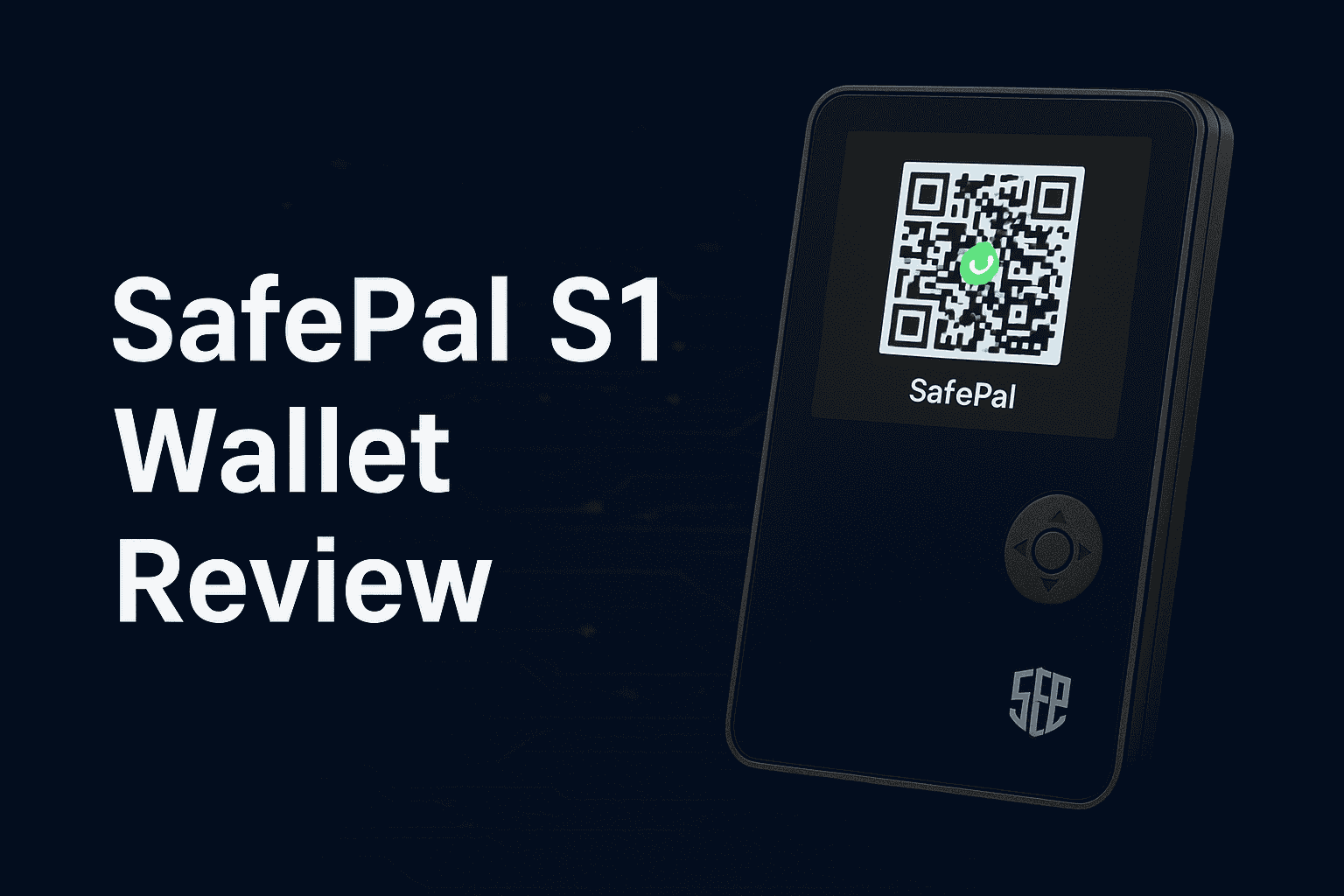
The SafePal S1 ($49.99) is the most affordable legitimate hardware wallet available and the only mainstream option with a true air-gapped, QR-code-only design — no USB data transfer, no Bluetooth, no NFC. It supports 100+ blockchains and 10,000+ tokens, and carries an EAL5+ certified secure element chip.
- Best for: Budget-conscious buyers, BSC/DeFi users, mobile-first crypto holders
- Consider Ledger or Trezor instead if: You want a longer brand track record, Bluetooth, or fully open-source firmware
- Bottom line: For $49.99, the SafePal S1 delivers genuine cold storage security — but the air-gapped QR workflow takes getting used to
I’ve personally tested the SafePal S1 across multiple transactions — Bitcoin sends, ERC-20 token transfers, and BSC DeFi interactions — using both iOS and Android to cover the full experience. The QR-code workflow is genuinely different from every other hardware wallet on the market, and I’ll walk you through exactly what that feels like in practice, where it shines, and where it creates friction.
More than $3.4 billion in cryptocurrency was stolen in 2025 through exchange hacks, phishing, and wallet exploits. A hardware wallet is the most effective defence available. The SafePal S1 is the most accessible entry point to genuine cold storage — at $49.99, it costs less than a dinner out and protects your holdings indefinitely.
This guide covers everything: what makes the S1 unique, honest pros and cons, step-by-step setup, troubleshooting, and where it fits against Ledger and Trezor.
- What Is the SafePal S1 and How Does It Work?
- SafePal S1 Full Specifications (2026)
- SafePal S1 Pros and Cons: Honest Assessment
- How to Buy a SafePal S1 Safely
- How to Set Up Your SafePal S1: Step-by-Step Guide
- How to Send and Receive Crypto with SafePal
- Advanced Features: DeFi, NFTs & Multi-Wallet
- Security Best Practices for SafePal Users
- Common SafePal Problems and Fixes
- SafePal S1 vs. Ledger vs. Trezor: Full Comparison
- Frequently Asked Questions
1. What Is the SafePal S1 and How Does It Work?
The SafePal S1 is a fully air-gapped cryptocurrency hardware wallet — meaning it communicates with your phone entirely through QR codes and has absolutely no USB data transfer capability, no Bluetooth, no NFC, and no WiFi. It is physically incapable of forming a digital connection with any other device.
This design is fundamentally different from how Ledger and Trezor work. Those devices connect to your computer or phone via USB or Bluetooth, sign transactions internally, and return the signed transaction through that same connection. SafePal eliminates the connection entirely:
- Your phone generates an unsigned transaction and displays it as a QR code on screen
- Your S1 scans that QR code using its built-in camera, reviews the transaction details on its own screen, and signs it internally
- The S1 displays the signed transaction as a QR code on its screen
- Your phone scans that QR code and broadcasts the signed transaction to the blockchain
At no point does any digital signal pass between the devices. Your private keys never leave the S1’s secure element chip — not during setup, not during transactions, not ever. This makes the S1 immune to every known remote attack vector: malware, phishing, clipboard hijacking, and network attacks cannot reach keys that have zero digital pathway to the outside world.
SafePal was founded in 2018 and received early backing from Binance Labs, giving it deep integration with the Binance Smart Chain ecosystem. It supports over 100 blockchains and 10,000+ tokens — one of the widest coverage ranges of any hardware wallet available.
Air-Gapped vs. USB/Bluetooth Hardware Wallets: The Real Difference
| Feature | SafePal S1 (Air-Gapped) | Ledger / Trezor (USB/BT) |
|---|---|---|
| Connection method | QR codes only — no digital link | USB-C and/or Bluetooth |
| Remote hack surface | ❌ Zero — no digital pathway | Minimal — keys never leave chip |
| Malware transmission via cable | ❌ Impossible | Theoretically possible |
| Computer required? | No — phone only | Desktop app often needed |
| Transaction friction | Higher — 2 QR scan steps per send | Lower — confirm button only |
2. SafePal S1 Full Specifications (2026)
| Specification | Details |
|---|---|
| Price | $49.99 (official) |
| Screen | 1.3-inch color LCD — full QR code and transaction detail display |
| Security chip | EAL5+ certified Secure Element — same level as credit cards and biometric passports |
| Connectivity | None — no USB data, no Bluetooth, no NFC, no WiFi. USB-C port is for charging only. |
| Communication | QR codes only — built-in camera for scanning |
| Battery | Rechargeable lithium — 1–2 weeks per charge with moderate use |
| Blockchain support | 100+ blockchains |
| Token support | 10,000+ tokens and coins |
| Recovery phrase | 12 or 24 words (BIP39 standard) |
| Self-destruct | ✅ Yes — emergency physical destruction button |
| Genuine check | ✅ Yes — app-verified device authenticity |
| Firmware updates | Air-gapped — delivered via QR codes, no computer connection required |
| Companion app | SafePal App — iOS 12+ and Android 7.0+ |
| Warranty | 1 year from official purchase |
3. SafePal S1 Pros and Cons: Honest Assessment
| ✅ Pros | ❌ Cons |
|---|---|
|
Lowest price of any legitimate hardware wallet — $49.99
True air-gapped design — zero digital connection to any device EAL5+ certified secure element chip Widest blockchain coverage of any hardware wallet — 100+ chains, 10,000+ tokens No computer required — smartphone-only workflow Self-destruct emergency button — unique in the hardware wallet market App-verified genuine check — confirms device authenticity Firmware updates delivered air-gapped via QR (no USB needed) Rechargeable battery — 1–2 weeks per charge Deep BSC and DeFi integration via Binance Labs backing |
QR workflow adds friction — every transaction requires multiple QR scans (more steps than USB/BT wallets)
Firmware is not open source — cannot be independently audited like Trezor Requires a smartphone at all times — no computer-based management Smaller brand history than Ledger (since 2014) and Trezor (since 2014) — SafePal launched in 2018 EAL5+ chip (vs. EAL6+ on Trezor Safe 3/Safe 5 and Ledger’s newer models) Camera QR scanning can struggle in poor lighting SafePal App is less polished than Ledger Wallet or Trezor Suite No desktop management interface at all |
4. How to Buy a SafePal S1 Safely
- Buy from safepal.com — the official website is always the safest option
- On Amazon: only buy from the official SafePal storefront — verify the seller name is “SafePal” before purchasing
- Binance’s official store also stocks genuine SafePal devices
- Never buy from: eBay, Facebook Marketplace, Craigslist, Alibaba, Reddit, or any private third-party seller — new or used
- When your device arrives: verify the tamper-evident seal is fully intact. Inspect all edges and seams of the packaging before opening.
- Confirm that no recovery phrase or seed words are pre-written anywhere in the box. A genuine SafePal device NEVER ships with a pre-set seed phrase. If you find one, stop — the device is compromised.
- Before adding any funds, complete the Genuine Check inside the device (Settings → Genuine Check) using the SafePal App. This cryptographically verifies the device against SafePal’s servers. Do not skip this step.
- Register your device at safepal.com to activate your 1-year warranty
5. How to Set Up Your SafePal S1: Step-by-Step Guide
Step 1 — Charge the Device First
Connect the S1 to power using the included USB-C cable. Charge fully before beginning setup — approximately 2 hours from empty. The screen shows a charging indicator. The USB-C port on the S1 is for charging only — it does not transfer any data to or from connected devices.
Step 2 — Power On and Select Language
Press and hold the power button for 3 seconds. The SafePal logo appears during boot. Use the directional buttons to select your preferred language and confirm with the center button.
Step 3 — Run the Genuine Check
Before creating any wallet, navigate to Settings → Genuine Check on the device. Open the SafePal App on your phone, scan the QR code displayed on the S1 screen, and the app will verify device authenticity against SafePal’s servers. You will see a confirmation screen if the device is genuine. Do not proceed if verification fails — contact SafePal support immediately.
Step 4 — Choose: Create New Wallet or Recover Existing
You’ll see two options on the main setup screen:
- Create New Wallet — for a brand-new wallet on a fresh device
- Recover Wallet — to restore from an existing 12 or 24-word recovery phrase
Select “Create New Wallet” for first-time setup.
Step 5 — Generate and Record Your Recovery Phrase
- Choose between a 12-word or 24-word phrase. Choose 24 words for maximum security.
- The device displays each word on screen, one at a time
- Write every word in exact order on the paper recovery cards included in the box — use a pen, not a pencil
- Never photograph, screenshot, type, email, text, or say your seed phrase aloud
- Never store it digitally — no password managers, no cloud drives, no notes apps
- Make at least two physical copies stored in separate, secure locations (fireproof home safe + bank safety deposit box)
- For maximum durability, consider steel backup plates (Cryptosteel, Billfodl) that survive fire, floods, and physical damage
For more context on what recovery looks like if something goes wrong, read our guide on seed phrase and private key recovery options.
Step 6 — Verify Your Recovery Phrase
Immediately after generating the phrase, the device prompts you to confirm specific words in a random order. This verifies you wrote everything down correctly. Do not skip or rush this verification — it is your only opportunity to catch a recording error before it permanently locks you out of your funds.
Step 7 — Set Your PIN Code
Choose a 4-digit PIN to protect physical access to the device. Avoid obvious patterns (1234, 0000, 1111). After 5 consecutive incorrect PIN attempts, the device wipes itself automatically — a deliberate brute-force protection feature. You can restore access using your recovery phrase.
Step 8 — Download the SafePal App and Pair Your Device
- Download the SafePal App from the Apple App Store or Google Play Store only — never from a third-party APK site or link in an email
- Open the app and complete initial setup. Grant camera permission — it is required for QR scanning.
- Set an app password (separate from your device PIN) and enable biometric authentication
- Tap “+” → Hardware Wallet → SafePal S1″ in the app
- On the S1: navigate to Settings → Pairing. The device displays a pairing QR code.
- Scan the pairing QR code with your phone camera in the app
- Both devices confirm successful pairing. Name your wallet for easy identification.
Step 9 — Add Cryptocurrencies and Create Accounts
- In the SafePal App, navigate to Manage Coins
- Browse or search for the cryptocurrencies you want to manage
- Toggle to enable each coin — accounts are created automatically
- For BSC tokens, BEP-20, ERC-20, or other token standards, enable the parent chain first (BNB, ETH, etc.) before adding tokens
6. How to Send and Receive Crypto with SafePal
Receiving Cryptocurrency
- In the SafePal App, select your coin account and tap Receive
- The app displays your receiving address and QR code
- On your S1: navigate to the same coin and select Receive — the device shows the address on its own screen
- Critical: verify the address matches on both your phone screen and the S1 screen before sharing it with anyone. Malware on your phone can display a different address than the one on the device.
- Share the verified address or QR code with your sender
Sending Cryptocurrency — The Full QR Workflow
This is where the SafePal S1 differs most from other hardware wallets. Every send transaction involves two QR scans instead of one button press. Here is the complete flow:
In the SafePal App (Step A):
- Select your coin account and tap Send
- Enter or scan the recipient’s wallet address
- Enter the amount and review the network fee
- Tap Confirm — the app generates an unsigned transaction QR code on your phone screen
On the S1 Device (Step B):
- On the S1, navigate to the same coin and select Send → Scan QR
- Hold the S1’s camera up to your phone screen to scan the unsigned transaction QR code
- The S1 displays full transaction details on its own screen: recipient address, amount, and network fee
- Verify every detail carefully on the device screen — this is your security checkpoint
- Confirm with the center button and enter your PIN. The S1 signs the transaction and displays a signed transaction QR code on its screen.
Back in the SafePal App (Step C):
- Tap Scan QR Code in the app and point your phone camera at the S1’s screen
- The app reads the signed transaction and broadcasts it to the blockchain
- You receive a transaction confirmation and can track it in the History tab
7. Advanced Features: DeFi, NFTs & Multi-Wallet
DeFi and dApp Access
The SafePal App includes a built-in dApp browser with WalletConnect support, letting you interact with decentralized exchanges (PancakeSwap, Uniswap), yield farming protocols, and lending platforms. Every interaction still routes through the S1 device for signing — the hardware security layer is maintained throughout.
The Binance Labs backing gives SafePal particularly strong BSC integration. If your DeFi activity is primarily on the BNB Smart Chain, the S1 is one of the most capable hardware wallets for that ecosystem.
NFT Management
SafePal supports NFTs across multiple chains including Ethereum, BSC, and Solana. You can view your NFT collections, send and receive NFTs, and track valuations directly in the SafePal App. For a deeper guide on moving NFTs to cold storage, see our NFT Transfer, Storage & Recovery guide.
Multiple Wallets
The SafePal App supports pairing with multiple S1 devices simultaneously — useful if you want to separate long-term holdings from a more active trading wallet, or manage wallets for multiple family members. Each wallet appears separately in the app with its own label.
Self-Destruct Emergency Feature
The S1 includes a physical self-destruct button — a feature unique in the mainstream hardware wallet market. Pressing it permanently destroys the device’s internal components, making it impossible for anyone to extract your private keys through physical means. Your funds remain fully recoverable from any new SafePal S1 using your backup phrase. This feature is designed for extreme duress situations and is a meaningful differentiator over Ledger and Trezor.
8. Security Best Practices for SafePal Users
🔐 Recovery Phrase Protection
- Write on paper or engrave on steel backup plates — never store digitally in any form
- Keep copies in at least two physically separate, secure locations
- Use a fireproof and waterproof safe for at least one copy
- Never store the recovery phrase in the same location as the physical device
- Never share it with anyone — including anyone claiming to be SafePal support
✅ Day-to-Day Operational Security
- Always verify transaction details on the S1 device screen — not only on your phone. Your phone can be compromised; the S1 screen cannot be remotely manipulated.
- Keep the SafePal App and device firmware updated — check regularly for new versions
- Enable the app password and biometric lock in SafePal App settings
- Never use SafePal App on a jailbroken or rooted smartphone
- Store the device in a cool, dry location. Charge it monthly if not in regular use to maintain battery health.
- Power off the device when not actively using it for extended periods
🚨 Scams Targeting SafePal Users — What to Watch For
- Fake support DMs: SafePal support will never initiate a direct message to you on Telegram, Discord, Twitter/X, or Reddit. Anyone doing so is a scammer. Legitimate support only responds when you contact them through official channels.
- “Sync” or “validate” wallet websites: Scammers post links in public crypto groups promising to “fix” or “validate” your wallet — these sites steal your seed phrase the moment you enter it. SafePal will never ask you to enter your seed phrase on any website.
- Fake SafePal apps: Download the SafePal App from the Apple App Store or Google Play only. Fake apps built to steal seed phrases have appeared on third-party sites. Search specifically for “SafePal” by SafePal Limited in the official stores.
- Phishing emails: After any high-profile crypto news, scammers send emails impersonating SafePal claiming your wallet is at risk. Never click links in unsolicited emails — type safepal.com directly into your browser.
- Counterfeit devices: Always run the Genuine Check before depositing any funds. If the check fails, the device is compromised — stop immediately.
9. Common SafePal Problems and Fixes
🔴 Device Won’t Power On
Most likely cause: Completely drained battery — the S1 can power down fully if left uncharged for extended periods.
Fix: Connect to a power source using the original USB-C cable and leave it charging for at least 30–60 minutes before attempting to power on. Try a different USB cable and power adapter if there is no charging indicator after 5 minutes. If the device still does not respond after 2–3 hours of charging, contact SafePal support at support.safepal.com.
🔴 QR Code Won’t Scan
Common causes: Poor lighting, dirty camera lens, incorrect scanning distance, or screen glare.
Fix:
- Clean the S1’s camera lens and your phone screen with a soft cloth
- Hold devices 6–12 inches apart — too close or too far both cause scan failures
- Maximize brightness on both the phone screen and S1 screen
- Scan in good ambient lighting — avoid direct sunlight glare on the screen
- Remove any screen protector from your phone if it’s causing reflection
- Update the SafePal App to the latest version — QR scanning improvements are released regularly
- Re-pair the devices if the connection issue persists: remove the wallet from the app, go to Settings → Pairing on the S1, and scan a new pairing QR code
🔴 Forgotten PIN Code
After 5 incorrect PIN attempts, the S1 wipes itself automatically. This is a security feature, not a malfunction. To restore access:
- Power on the wiped device
- Select “Recover Wallet”
- Enter your recovery phrase words in the exact original order
- Set a new PIN
- Re-pair with the SafePal App
- All funds are restored instantly
🔴 Lost or Stolen Device
Your crypto is on the blockchain — not on the physical device. The S1 is just a signing tool. As long as you have your recovery phrase, your funds are safe. Order a new SafePal S1 from safepal.com, select “Recover Wallet” during setup, enter your seed in the exact original order, and your full wallet is restored. Consider also enabling the passphrase feature on your new device for added protection against physical access.
🔴 App Not Connecting to Device
- Confirm camera permission is granted to the SafePal App in your phone settings
- Re-pair the devices: remove the wallet from the app → Settings → Pairing on S1 → scan new pairing QR
- Update both the SafePal App and S1 firmware to the latest versions
- Close the app completely and restart the S1 device
- Clear the app’s cache in your phone settings if the issue persists
- Test with a different smartphone to determine if the issue is phone-specific
🔴 Transaction Stuck as Pending
- Look up your transaction hash on the relevant blockchain explorer (Etherscan for ETH, BscScan for BSC, blockchain.com for Bitcoin) to check real-time status
- Ethereum/ERC-20: High gas congestion is the most common cause. Wait for congestion to clear, or — if your transaction supports it — use a gas accelerator
- Bitcoin: Low fee causes miners to deprioritize your transaction. Wait for the mempool to clear, or use a transaction accelerator service
- BSC: Usually resolves within minutes — check BscScan and wait
- For future transactions: use the recommended fee setting shown in the SafePal App and check current network conditions before sending large amounts
🔴 Incorrect Balance in SafePal App
- Force-refresh by disconnecting from the app (removing and re-adding the wallet), then re-scanning the pairing QR
- Verify the actual balance on the blockchain explorer using your wallet address
- Make sure you’re viewing the correct network — for example, USDT on Ethereum vs. USDT on BSC are different balances
- Update the SafePal App and check for known sync issues on the SafePal community channels
10. SafePal S1 vs. Ledger vs. Trezor: Full Comparison
| Feature | SafePal S1 | Ledger Nano S Plus | Trezor Safe 3 |
|---|---|---|---|
| Price | $49.99 | $79 | $79 |
| Connection | None — QR only | USB-C | USB-C |
| Security chip | EAL5+ | CC EAL5+ | EAL6+ |
| Open source firmware | ❌ No | ❌ Partially | ✅ Fully |
| Coin support | 10,000+ tokens, 100+ chains | 5,500+ | 1,000+ |
| Requires computer? | No — phone only | Recommended | Yes for full features |
| Battery | ✅ 1–2 weeks | ❌ USB powered only | ❌ USB powered only |
| Self-destruct | ✅ Yes | ❌ No | ❌ No |
| Customer data breach | None on record | 2020 (emails exposed) | None on record |
| Brand founded | 2018 | 2014 | 2014 |
Choose SafePal S1 if: budget is your primary constraint, you want the widest possible blockchain/token support, you prefer a smartphone-only workflow with no computer needed, or you value the air-gapped architecture and self-destruct feature.
Choose Ledger if: you want Bluetooth for mobile use, a wider brand ecosystem, or Clear Signing for DeFi (available on Gen5, Flex, Stax). Read our complete Ledger hardware wallet review for the full lineup comparison.
Choose Trezor if: open-source transparency is your top priority, or you want an EAL6+ secure element with Shamir Backup at a similar price. Read our complete Trezor hardware wallet review for a detailed breakdown.
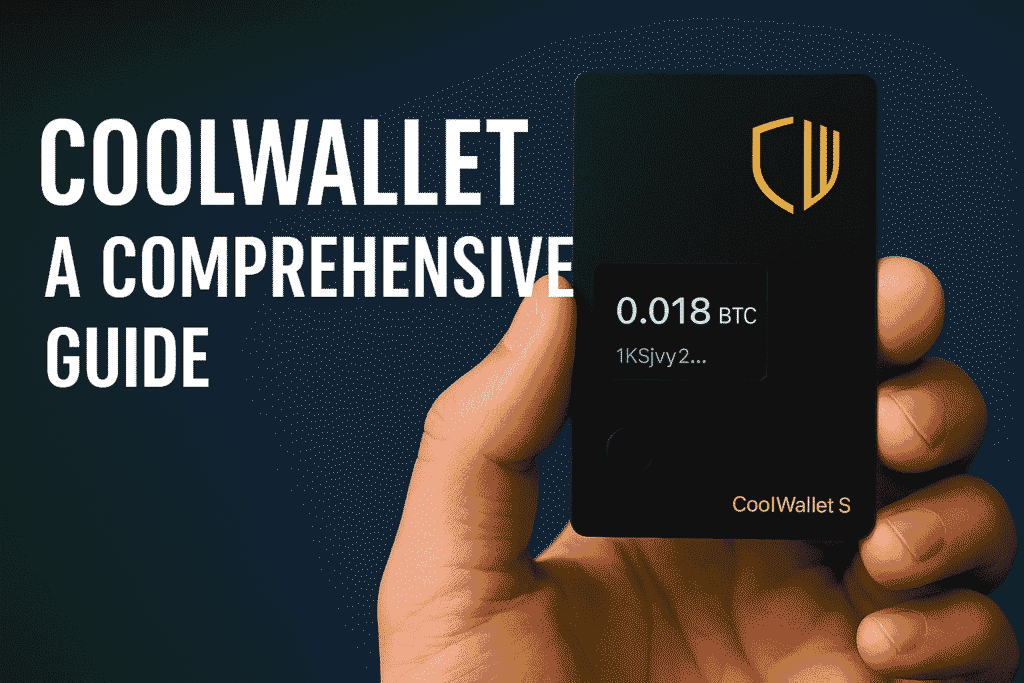
Looking at more alternatives? We’ve also reviewed the mobile-first CoolWallet S and the ShapeShift-integrated KeepKey.
11. Frequently Asked Questions
Is the SafePal S1 a good hardware wallet?
Yes — for its price point ($49.99), the SafePal S1 is one of the most capable hardware wallets available. The air-gapped QR design provides a genuinely stronger theoretical isolation than USB-based wallets, the EAL5+ chip provides certified secure element protection, and the 10,000+ token support across 100+ blockchains is unmatched at this price. The trade-off is the multi-step QR transaction workflow and the lack of open-source firmware.
Is SafePal S1 safe?
Yes. The S1 uses an EAL5+ certified secure element chip — the same certification level as credit cards and biometric passports. Its air-gapped design means private keys have zero digital pathway to the outside world. No SafePal hardware device has been remotely compromised. Provided you purchase from an official source, run the Genuine Check, and secure your recovery phrase properly, the S1 is a genuinely secure cold storage solution.
Can SafePal be hacked remotely?
No. The air-gapped design makes remote hacking physically impossible — there is no digital connection for an attacker to exploit. The only attack vectors are physical (direct access to the device) and social engineering (tricking you into revealing your seed phrase). Both are user-controlled risks, not device vulnerabilities.
What cryptocurrencies does SafePal S1 support?
SafePal S1 supports 100+ blockchains and over 10,000 cryptocurrencies and tokens — including Bitcoin, Ethereum, BNB Smart Chain, Solana, Cardano, Polygon, Avalanche, XRP, Tron, Dogecoin, Litecoin, and thousands of ERC-20, BEP-20, and SPL tokens. It also supports NFTs across multiple chains.
What happens if I lose my SafePal S1?
Your cryptocurrency is on the blockchain, not on the device. Buy a replacement S1 from safepal.com, select “Recover Wallet” during setup, enter your 12 or 24-word recovery phrase in the exact original order, and your entire wallet is restored instantly. The device is just a signing tool — your recovery phrase is your actual wallet.
Does SafePal work without a smartphone?
No. The SafePal S1 requires the SafePal App on an iOS or Android smartphone for all operations — generating addresses, broadcasting transactions, managing coins, and firmware updates. The phone serves as the interface and network connection only; your private keys remain exclusively on the S1 device at all times.
How long does the SafePal S1 battery last?
The S1’s rechargeable battery lasts approximately 1–2 weeks with moderate use per charge. Charging takes about 2 hours via USB-C. For long-term storage, charge the device monthly to maintain battery health. Battery degradation over time is normal and does not affect security.
Can I use SafePal with MetaMask?
Not directly as a hardware signer the way Ledger or Trezor can connect to MetaMask. SafePal works primarily through its own SafePal App ecosystem. If you need MetaMask integration specifically, Ledger or Trezor are better choices. You can import your SafePal recovery phrase into MetaMask, but doing so eliminates hardware security benefits — this is not recommended.
Is SafePal affiliated with Binance?
SafePal received early-stage investment from Binance Labs and is an official Binance Labs portfolio company. It is not owned by or part of Binance — it operates as an independent company. The relationship provides strong BSC integration and ecosystem benefits but does not mean Binance controls the device or has access to your keys.
SafePal vs Ledger — which is better?
It depends on your priorities. SafePal is $30 cheaper, fully air-gapped, has broader blockchain support (10,000+ tokens vs 5,500+), and includes a self-destruct feature. Ledger offers a more mature ecosystem, Bluetooth connectivity on premium models, Clear Signing for DeFi (on Gen5/Flex/Stax), and a longer brand track record since 2014. For budget buyers and BSC-heavy portfolios, SafePal wins. For DeFi power users and Bluetooth convenience, Ledger wins.
Final Verdict: Should You Buy the SafePal S1 in 2026?
The SafePal S1 is the most affordable legitimate hardware wallet available and offers a security architecture — air-gapped, QR-only communication — that is theoretically stronger than USB-based alternatives. At $49.99, its cost is genuinely not a barrier for anyone holding meaningful cryptocurrency value.
Its strongest qualities: lowest price in the market, widest blockchain and token coverage of any hardware wallet, no computer required, an emergency self-destruct feature no competitor offers, and a Binance-integrated DeFi ecosystem that makes it especially capable for BSC and multi-chain users.
Its honest limitations: the QR-code workflow adds friction to frequent transactions, the firmware is not open source (unlike Trezor), and it lacks the Bluetooth convenience of Ledger’s premium models. These are real trade-offs — not dealbreakers for most users, but worth understanding before buying.
Whatever hardware wallet you choose: always buy from the official source, run the Genuine Check before depositing any funds, store your recovery phrase in two physically separate secure locations, and always verify transaction details on the device screen before confirming. Those four habits are the foundation of genuine cryptocurrency security.
Disclaimer: This article is for informational purposes only and does not constitute financial or investment advice. Hi Tech Blogging is not affiliated with SafePal or Binance. Prices are based on official SafePal pricing as of April 2026 and are subject to change. Always verify current pricing at safepal.com before purchasing.
- Ledger Hardware Wallet — Full Review & All 5 Models Compared
- Trezor Hardware Wallet — Full Review & All 3 Models Compared
- CoolWallet S — Mobile Crypto Security Guide
- KeepKey Hardware Wallet — Complete Guide
- Lost Your Seed Phrase? Recovery Options Explained
- NFT Transfer, Storage & Recovery — Complete Guide
- How to Withdraw from Atomic Wallet to Cold Storage
- How to Withdraw from Kraken to Your Hardware Wallet
- How to Withdraw from Crypto.com
- How to Use a Bitcoin ATM for the First Time